
Lista de comandos para roteadores e switches huawei


No guia de hoje, vou te apresentar a lista de comandos huawei para roteadores e switches. Dependendo da versão, modelo ou dispositivo, os comandos podem ser um pouco diferentes, mas sabendo o comando anterior, fica fácil descobrir. Caso precise verificar a lista de comandos, basta digitar “?” para exibir a lista de comandos disponíveis. Já disponibilizei no blog a lista de comandos para OLT Huawei MA5800, caso precise consultar.
A lista será atualizada constantemente, então, caso sinta falta de algum comando ou deseja contribuir com o conteúdo, me envie uma mensagem no fim do post.
Segue abaixo a lista de comandos e suas funcionalidades:
1 – system-view: entrar em modo de configuração de roteadores e switches huawei:
					<switch-teste>
Enter system view, return user view with Ctrl+Z.
[switch-teste]
2 – sysname: Alterar o nome do equipamento (funciona para roteadores e switches huawei)
					[switch-teste]sysname ROTEADOR-TESTE
[ROTEADOR-TESTE]
3 – Display interface brief: Listar as interfaces do equipamento (
					[switch-teste]display interface brief
PHY: Physical
*down: administratively down
#down: LBDT down
(l): loopback
(s): spoofing
(E): E-Trunk down
(b): BFD down
(e): ETHOAM down
(dl): DLDP down
(lb): LBDT block
InUti/OutUti: input utility/output utility
Interface                   PHY   Protocol  InUti OutUti   inErrors  outErrors
Eth-Trunk0                  up    up       60.10%  8.50%          0          0
  40GE0/0/1                 up    up       59.68%  8.64%          0          0
  40GE0/0/2                 up    up       60.53%  8.37%          0          0
Eth-Trunk1                  up    up       10.13% 72.24%          0          0
  XGigabitEthernet0/0/47    up    up        9.58% 74.77%          0          0
  XGigabitEthernet0/0/48    up    up       10.67% 69.71%          0          0
Eth-Trunk1.800              up    up           0%     0%          0          0
Eth-Trunk2                  up    up       27.25%     0%   34971515          0
4 – Display ip interface brief: Lista as interfaces dos equipamentos que possuem endereço IP associado. Facilita na hora de procurar pelos endereços utilizados, se estão up ou down, seu consumo e até se possui algum erro na interface.
					[switch-teste]display ip interface brief
*down: administratively down
^down: standby
(l): loopback
(s): spoofing
(E): E-Trunk down
The number of interface that is UP in Physical is 25
The number of interface that is DOWN in Physical is 5
The number of interface that is UP in Protocol is 24
The number of interface that is DOWN in Protocol is 6

Interface                         IP Address/Mask      Physical   Protocol
Eth-Trunk0                        100.200.0.14/30       up         up
Eth-Trunk2                        100.200.0.25/30       up         up
Eth-Trunk3                        100.200.0.113/30      up         up
Eth-Trunk4                        100.200.0.109/30      up         up
Eth-Trunk6                        100.200.0.73/30       up         up
Eth-Trunk10                       100.200.0.101/30      up         up
Eth-Trunk14                       100.200.0.117/30      up         up
Eth-Trunk20                       100.200.0.33/30       up         up
5 – display current-configuration: exibe as configurações atuais no equipamento (muito usado para verificar todas as configurações em produção na caixa.
					[switch-teste]display current-configuration
!Software Version V200R009C00SPC500
#
sysname switch-teste
#
ipv6
#
as-notation plain
#
vcmp role silent
#
vlan batch 2 13 to 15 30 32 100 to 198 212 249 300 to 301 401 449
#
lnp disable
#
authentication-profile name default_authen_profile
authentication-profile name dot1x_authen_profile
authentication-profile name mac_authen_profile
authentication-profile name portal_authen_profile
authentication-profile name dot1xmac_authen_profile
authentication-profile name multi_authen_profile
#
diffserv domain default
#
radius-server template default
#
bfd
#
mpls lsr-id 100.200.255.216
mpls
 mpls te
#
  ---- More ----
6 – vlan: Cria uma vlan. O comando pode variar caso prefira criar 1, 2 ou até mesmo um range de vlans:
					[switch-teste]vlan ?
  INTEGER<1-4094>  VLAN ID
  batch            Batch process
  statistics       Traffic statistics
  vlan-name        Specify VLAN name
7 – vlan batch: Cria mais de uma vlan, podendo escolher vlans aleatórias ou até mesmo um range utilizando o comando “to”:
[switch-teste]vlan batch 2 3 5 6 100 to 200
8 – local-user: Comando para criar usuários no equpamento huawei:
					 [switch-teste-aaa]local-user usuario@universodostutoriais password irreversible-cipher sua_senha_aqui
[switch-teste-aaa]local-user usuario@universodostutoriais privilege level 15
[switch-teste-aaa]local-user usuario@universodostutoriais service-type telnet terminal ssh ftp
9 – shutdown / undo shutdown : desativa e ativa uma interface:
					[switch-teste]interface XGigabitEthernet 0/0/1
[switch-teste-XGigabitEthernet0/0/1]shutdown
[switch-teste-XGigabitEthernet0/0/1]undo shutdown
10 – undo portswitch: O comando portswitch altera o modo de trabalho das interfaces Ethernet do modo Layer 3 para o modo Layer 2.
O comando undo portswitch altera o modo de trabalho das interfaces Ethernet do modo Layer 2 para o modo Layer 3.
Por padrão, uma interface Ethernet funciona no modo Layer 2.
A vantagem dos switches Huawei é que podemos trabalhar em uma porta em modo switch ou router, basta digitar o comando undo portswitch para poder atribuir um endereço IP à interface:
					[switch-teste-XGigabitEthernet0/0/13]undo portswitch
[switch-teste-XGigabitEthernet0/0/13]ip address 10.0.0.1 255.255.255.0
11 – comando sub: usado para adicionar mais de um endereço IP na mesma interface. Basta adicionar o comando no fim da linha:
[switch-teste-XGigabitEthernet0/0/13]ip address 10.0.0.1 30 sub
12 – display this: comando usado para exibir a configuração atual da interface ou de algum comando que acabou de aplicar. Muito útil para não precisar utilizar o display current-configuration e procurar o comando inserido:
					[switch-teste-XGigabitEthernet0/0/13]display this
#
interface Eth-Trunk10
 undo portswitch
 description CIRCUITO-ENLACE-TESTE
 mtu 9216
 ip address 100.200.0.101 255.255.255.252
 ip address 10.0.0.1 255.255.255.252 sub
 ospf cost 120
 ospf dr-priority 99
 ospf enable 1 area 0.0.0.0
13 – ip route-static: comando usado para adicionar uma rota estática manualmente no equipamento. Pode também adicionar rotas blackhole “null0”, preferencias por rotas específicas com o comando “preferente” e também descrições para identificar essas rotas com o comando “description”. Os comandos funcionam em switches e routers huawei:
					ip route-static 0.0.0.0 0.0.0.0 100.210.0.13
ip route-static 4.14.223.0 255.255.255.240 10.100.0.111 preference 1
ip route-static 4.15.223.0 255.255.255.0 10.100.0.111 preference 1
ip route-static 10.10.64.0 255.255.248.0 10.10.110.2 description redirecionar o site para o link backup
14 – port link-type trunk: Comando usado para criar uma porta tronco. Uma porta trunk, ou porta de tronco, é uma porta que permite a passagem de tráfego de várias VLANs (Virtual Local Area Networks) em um switch.
					interface XGigabitEthernet0/0/4
 description LINK-UNIVERSO-DOS-TUTORIAIS
 port link-type trunk
 undo port trunk allow-pass vlan 1
 port trunk allow-pass vlan 2 100 to 158 170 to 171 400 3095 4000
#
15 – display transceiver interface: Mostra o nível de sinal (dbm) de uma interface.
					[switch-testeL]display transceiver interface XGigabitEthernet 40GE/0/2 verbose

40GE0/0/2 transceiver information:
-------------------------------------------------------------
Common information:
  Transceiver Type               :40GBASE_SR_QSFP+
  Connector Type                 :MPO
  Wavelength(nm)                 :850
  Transfer Distance(m)           :30(50um),100(OM3)
  Digital Diagnostic Monitoring  :YES
  Vendor Name                    :CISCO-PRE
  Vendor Part Number             :PRE-QSFP-SR4
  Ordering Name                  :
-------------------------------------------------------------
Manufacture information:
  Manu. Serial Number            :BB180203311
  Manufacturing Date             :2018-02-03
  Vendor Name                    :CISCO-PRE
-------------------------------------------------------------
Diagnostic information:
  Temperature(▒▒C)              :37.30
  Temp High Threshold(▒▒C)      :80.00
  Temp Low  Threshold(▒▒C)      :-10.00
  Voltage(V)                    :3.32
  Volt High Threshold(V)        :3.46
  Volt Low  Threshold(V)        :3.13
  Bias Current(mA)              :7.55|7.36(Lane0|Lane1)
                                 7.49|7.23(Lane2|Lane3)
  Bias High Threshold(mA)       :11.00
  Bias Low  Threshold(mA)       :2.00
  RX Power(dBM)                 :-0.91|-1.05(Lane0|Lane1)
                                 -1.39|-0.47(Lane2|Lane3)
  RX Power High Warning(dBM)    :0.99
  RX Power Low  Warning(dBM)    :-11.49
  RX Power High Threshold(dBM)  :4.00
  RX Power Low  Threshold(dBM)  :-14.49
  TX Power(dBM)                 :-0.45|-0.69(Lane0|Lane1)
                                 -0.49|-0.63(Lane2|Lane3)
  TX Power High Warning(dBM)    :0.99
  TX Power Low  Warning(dBM)    :-7.59
  TX Power High Threshold(dBM)  :4.00
  TX Power Low  Threshold(dBM)  :-10.59
  Transceiver phony alarm       : Yes
-------------------------------------------------------------
16 – display bgp peer: Exibe as informações do peers BGP, tempo de sessão (uptime), se está ativo ou estabelecido
					BGP local router ID : 10.200.100.1
 Local AS number : 45800
 Total number of peers : 8                Peers in established state : 8

  Peer            V          AS  MsgRcvd  MsgSent  OutQ  Up/Down       State PrefRcv

  100.200.0.34     4       64901   45802   45803  45804     0 ****h50m Established      47
  100.200.255.1    4      45802   45803  45804     0 ****h06m Established       2
  100.200.255.10   4      45802   45803  45804     0 4555h25m Established       3
  44.22.33.1   4      45801    78431    26236     0 0437h17m Established      11
17 – display bgp routing-table: Exibe as informações dos prefixos anunciados (advertised-routes) e recebidos (received-routes) das operadoras.
					[switch-teste]dis bgp routing-table peer 10.100.10.44 advertised-routes

 A default route is advertised originally

 BGP Local router ID is 10.0.0.1
 Status codes: * - valid, > - best, d - damped,
               h - history,  i - internal, s - suppressed, S - Stale
               Origin : i - IGP, e - EGP, ? - incomplete


 Total Number of Routes: 30
      Network            NextHop        MED        LocPrf    PrefVal Path/Ogn

 *>i  10.11.104.0/24     10.100.10.44                           0      26443 264444i
 *>   4.4.0.0/22    10.100.10.44     2                     0      266666i
 *>   4.4.2.0/23    10.100.10.44     2                     0      266666i
 *>   4.4.2.0/24    10.100.10.44     20                    0      266666i
 *>   4.4.4.0/24    10.100.10.44     2                     0      266666i
 *>   4.4.172.0/23    10.100.10.44     2                     0      266666i
 *>   4.4.174.0/23    10.100.10.44     2                     0      266666i
					[switch-teste]dis bgp routing-table peer 10.100.10.44 advertised-routes

 A default route is advertised originally

 BGP Local router ID is 10.0.0.1
 Status codes: * - valid, > - best, d - damped,
               h - history,  i - internal, s - suppressed, S - Stale
               Origin : i - IGP, e - EGP, ? - incomplete


 Total Number of Routes: 47
      Network            NextHop        MED        LocPrf    PrefVal Path/Ogn

 *>   100.64.192.0/19    10.200.0.34     0                     0      64901?
 *>    4.4.2.0/32   10.200.0.34     0                     0      64901?
 *>   111.111.60.101/32  266666i     0                     0      64901?
 *>   112.112.60.119/32  266666i     0                     0      64901?
 *>   113.113.60.133/32  266666i     0                     0      64901?
 *>   114.114.60.141/32  266666i     0                     0      64901?
 *>   8.8.8.8/32  266666i     0                     0      64901?
18 – save / run save: Salva as configuraçoes atuais no switch.
A extensão do nome do arquivo de configuração deve ser .zip ou .cfg. O arquivo de inicialização do sistema deve ser armazenado no diretório raiz do dispositivo de armazenamento.
- Se você não especificar configuration-file ao salvar o arquivo de configuração pela primeira vez, o sistema perguntará se você deseja salvar o arquivo de configuração como vrpcfg.zip . O arquivo vrpcfg.zip é o arquivo de configuração padrão do sistema com configurações vazias no estado inicial.
- Se você não especificar configuration-file , as configurações serão salvas no arquivo de configuração de inicialização atual. Você pode executar o comando display startup para verificar o nome do arquivo de configuração de inicialização atual.
					[switch-teste]run save
The current configuration (excluding the configurations of unregistered boards or cards) will be written to flash:/vrpcfg.zip.
Are you sure to continue?[Y/N]y
Now saving the current configuration to the slot 0.
Save the configuration successfully.
Outros comandos para roteadores Huawei
Listar os clientes logados no roteador
					[~PPPOE-SERVER-TESTE]display access-user
  ------------------------------------------------------------------------------
  Total users                        : 4904
  IPv4 users                         : 410
  IPv6 users                         : 0
  Dual-Stack users                   : 4493
  Lac users                          : 0
  RUI local users                    : 0
  RUI remote users                   : 0
  Wait authen-ack                    : 0
  Authentication success             : 4904
  Accounting ready                   : 1
  Accounting state                   : 4903
  Wait leaving-flow-query            : 0
  Wait accounting-start              : 0
  Wait accounting-stop               : 0
  Wait authorization-client          : 0
  Wait authorization-server          : 0
  ------------------------------------------------------------------------------
Listar todos os Clientes logados na INTERFACE
					[~PPPOE-SERVER-TESTE]display access-user interface GigabitEthernet0/3/2.100
  ------------------------------------------------------------------------------

  UserID     Username                Interface      IP address       MAC
             Vlan          IPv6 address             Access type
  ------------------------------------------------------------------------------
  0          daianefirmino@univer...  GE0/3/2.100    100.64.200.177   913f-6064-0c4e
             736/-         280B:2575:313D:8B00::/56  PPPoE
  4          ivoneroliveira@univer...  GE0/3/2.100    100.64.196.121   3ca3-7eef-c711
             101/-         -                        PPPoE
  5          josecborges@univer...  GE0/3/2.100    100.64.192.55    c0ff-b8f0-152b
             149/-         280B:2575:3112:2C00::/56  PPPoE
  8          douglasgsantos@univer...  GE0/3/2.100    100.64.216.112   3458-4017-1607
             141/-         280B:2575:312C:B000::/56  PPPoE
  66         mariaacarmmo@univer...  GE0/3/2.100    100.64.214.46    d830-9fa7-a2de
             111/-         280B:2575:3112:2000::/56  PPPoE
Outros comandos úteis para roteadores huawei:
[~PPPOE-SERVER-TESTE]cut access-user username “usuario-do-cliente”
Espero que o tutorial tenha sido útil.
Gostaria de me ajudar?
Se quiser fazer uma doação, ficarei muito feliz


Sobre o autor
Ivan Alves
Especialista em redes de provedores (ISP)
Ivan Alves trabalha há mais de 15 anos com redes de provedores de internet, do NOC ao backbone e à borda BGP. Coordena infraestrutura e tecnologia em um provedor regional e escreve aqui os tutoriais que gostaria de ter encontrado quando começou: comandos testados, cenário explicado e o porquê de cada linha.
5 Comentários
Deixe um comentário Cancelar resposta
Leia Também
 Cisco
Cisco
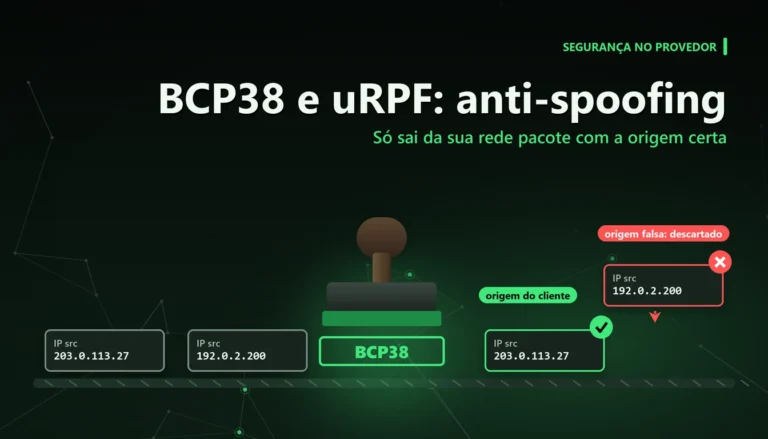
BCP38 e uRPF: anti-spoofing no Huawei, Cisco, Juniper e Mikrotik
BCP38 no provedor: onde aplicar anti-spoofing, uRPF strict ou loose, ACL de origem e a sintaxe no Huawei, Cisco, Juniper e Mikrotik, com teste no Spoofer.
 GPON
GPON
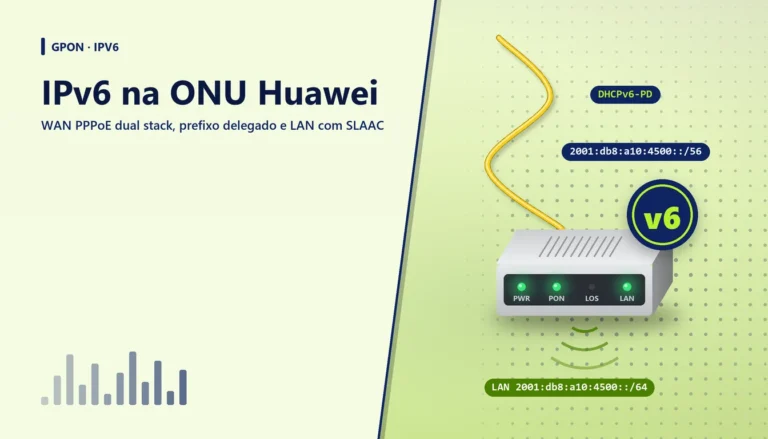
IPv6 na ONU Huawei: WAN PPPoE dual stack e prefixo delegado
IPv6 na ONU Huawei em modo roteador: WAN PPPoE dual stack, prefixo por DHCPv6-PD, LAN com SLAAC, TR-069 no GenieACS e conferência na OLT.
 GPON
GPON
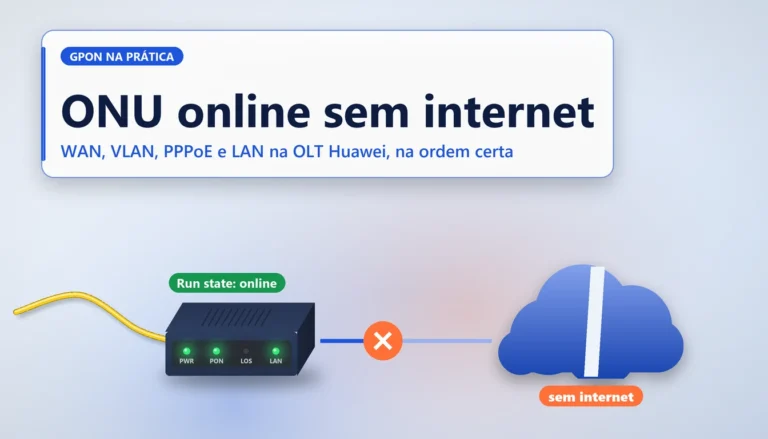
ONU online sem internet: diagnóstico na OLT Huawei
ONU online sem internet na OLT Huawei: como checar WAN, PPPoE, VLAN da service-port, portas LAN e concentrador, na ordem certa.
[…] Dica: faça um backup da configuração atual antes de começar (display current-configuration e save). Se precisar de uma referência de comandos, veja a lista de comandos para roteadores e switches Huawei. […]
[…] Atenção: os passos abaixo mexem em interface de backbone, então use janela de manutenção. Para dúvidas de sintaxe do VRP, consulte a lista de comandos para roteadores e switches Huawei. […]
[…] para ele; o Passo 1 trata disso. Se precisar relembrar a sintaxe básica de VRP, a lista de comandos para roteadores e switches Huawei cobre o […]
[…] Para quem pensa em VRP, esta tabela traduz os comandos Junos mais comuns. Ela cobre o uso do dia a dia; opções específicas de cada comando mudam entre as plataformas. A coluna do VRP está detalhada na nossa lista de comandos para roteadores e switches Huawei. […]
[…] específicas mudam entre plataformas e versões. A coluna do Huawei está detalhada na nossa lista de comandos para roteadores e switches Huawei, e a do Juniper no guia de comandos Junos […]